
Parental Control - Kroha
Parental Control KrohaParenting
4.6484.00 Reviews
- Version
- 3.14.4
- Installs
- 1.00M
- Age Rating
- Everyone
Screenshots
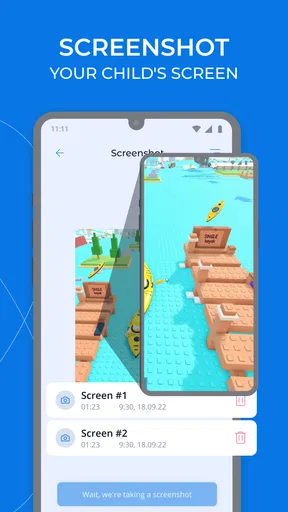
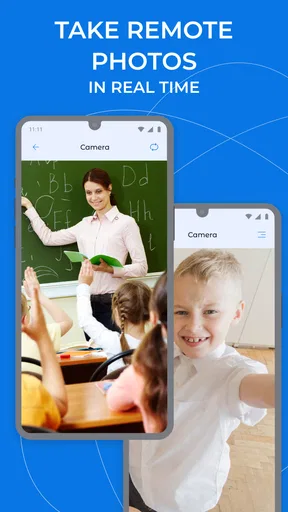
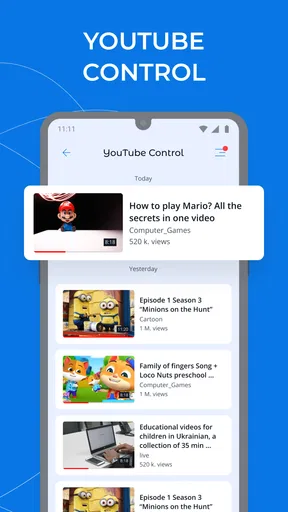

Our Review of Parental Control - Kroha
 Analysis by Appyee
I find parental-control apps most useful when they turn a vague concern into a routine the whole family understands. Parental Control - Kroha is built around that practical job: helping a parent manage a child’s screen use and check in on their surroundings. The key is to choose a few settings that match your family’s needs, explain them clearly, and review them together rather than treating monitoring as a substitute for conversation.
A steady baseline works better than constant intervention
My recommended starting point is deliberately simple. Install the app on the parent’s phone and the child’s device, complete the setup, and agree on one or two rules before changing a long list of controls. For example, a family might begin with a daily screen-time boundary and a plan for when games need to stop. That gives everyone a clear expectation and makes it easier to tell whether the rules are helping.
The app is free to install, with optional in-app purchases ranging from $0.99 to $39.99 per item. Its 4.6 average across around 29,000 ratings and more than a million installs suggests that many families have tried it, but popularity alone cannot tell you whether its controls fit your household. I would treat the free version as a chance to explore the experience, then check the available purchase details in the app before deciding whether a paid option is worthwhile.
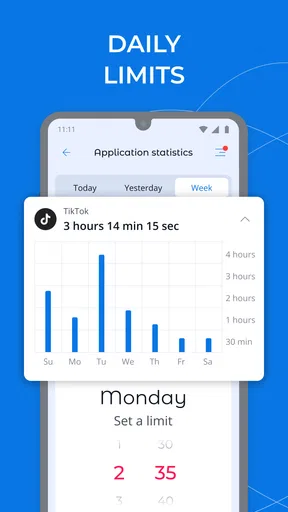
For a realistic weekday routine, imagine a child who tends to keep playing after homework begins. A parent can use screen-time controls to set a predictable boundary, then talk through what happens when that limit is reached. The useful part is not simply ending a session; it is making the rule consistent enough that the child knows what to expect. If the limit regularly clashes with homework, a family activity, or a planned call, that is a cue to revisit the schedule rather than repeatedly making exceptions in the heat of the moment.
Settings to approach with care
Screen limits and app blocking are most effective when they are specific. Instead of blocking every game or imposing the strictest setting immediately, I would identify the particular app or time of day that causes trouble and start there. This keeps the boundary connected to a real concern, and it gives the child a chance to understand the reason behind it. A broad restriction may be simpler to configure, but it can also block useful or age-appropriate activities along with the distraction.
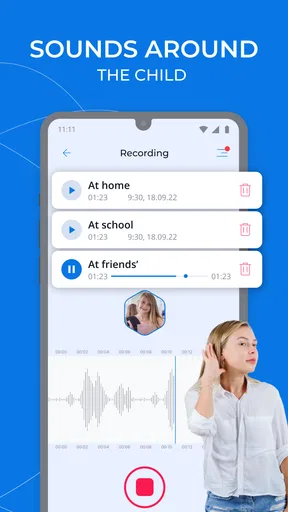
The app’s focus on sound around a child is a more sensitive area than ordinary screen scheduling. I would think carefully about when that kind of check-in is genuinely needed and explain it in language the child can understand. A feature intended for safety can feel intrusive if it is used casually or without a clear family agreement. In my view, the best parental-control setup is one the child knows about, with monitoring reserved for a specific purpose rather than becoming an invisible background habit.
Before relying on any control, I would test it together on the child’s device. Check whether the intended limit behaves as expected, whether the child understands the notification or restriction, and whether the parent can find the setting again without hunting through menus. A short trial is more useful than assuming a rule is working simply because it was switched on. It also gives parents a chance to spot a practical mismatch before it becomes a frustrating argument.
Build a repeatable routine instead of micromanaging
A small weekly check-in can make the app easier to live with. I would look at the available activity reports with the child and ask a concrete question, such as whether gaming is getting in the way of sleep, schoolwork, or time together. Then adjust only the setting that relates to the issue. This approach uses the reports as a conversation starter, not as a scorecard or a reason to inspect every detail of a child’s day.
Another helpful habit is to decide in advance how exceptions work. A longer journey, a visit with relatives, or a special event may call for a different screen-time plan. If a parent knows the rule and the reason for changing it, the exception stays occasional instead of quietly becoming the new normal. Kroha’s value here is less about automating every parenting decision and more about giving families controls they can apply consistently.
Compared with relying only on a phone’s built-in screen-time tools, a dedicated parental-control app may appeal to parents who want a single place to manage several kinds of oversight. Built-in controls can be a better fit for someone who only needs a basic time limit and prefers not to add another app. Kroha is more relevant when a parent wants to combine screen boundaries with its child-focused monitoring options. I would choose the simpler route if one device setting already solves the family’s problem; more controls are not automatically better.
Where the controls help—and where judgment still matters
I see the controls as a way to make an agreed boundary easier to follow, not as a substitute for deciding what is fair. When I choose a setting, I would also decide how the family will handle a legitimate exception—such as a schedule change—so flexibility does not turn into a daily negotiation. That distinction matters most when a child pushes back, and it leads naturally to the question of when these tools are genuinely useful.
Useful for families with a clear, shared goal
This app is best suited to parents who can name the issue they are trying to address: too much time in games, difficulty stopping at an agreed hour, or a need for a particular safety check-in. It is less suited to families looking for a hands-off solution that will settle disagreements by itself. No setting can replace a conversation about trust, responsibility, or why a boundary exists.
It may also be a poor fit for a teenager who expects substantial privacy, especially if a parent intends to use monitoring without discussion. In that situation, I would start with an agreement about screen habits and safety rather than installing controls as a surprise. Families who only want a basic device-level timer may find their phone’s existing settings less complicated. The right choice depends on whether Kroha’s additional parental-control approach addresses a real need, not on how many options an app offers.
Getting Started
First things first, setting up Parental Control - Kroha is as easy as pie. You download the app on both your phone and your kid’s device. Once you’re all set up, you can start customizing the settings. The interface is pretty intuitive, so you won’t feel like you’re deciphering hieroglyphics. It’s a straightforward process, and in no time, you’ll have everything under control. Literally!
Features Galore
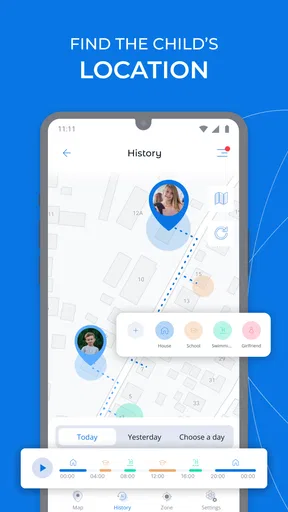
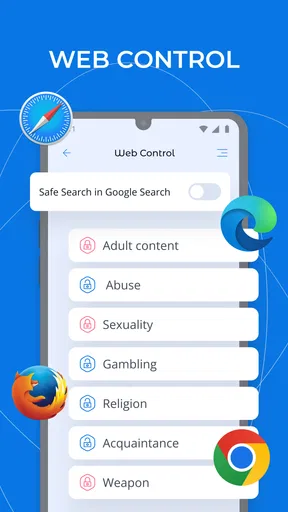
What really caught my eye was the range of features this app packs. From managing screen time to blocking inappropriate content, Kroha covers all bases. You can set daily limits on apps, which is perfect if you’re trying to get your kids to spend less time on games and more time on homework. And let’s not forget the GPS tracking feature—because knowing where your kids are is a huge relief.
One of my favorite features is the ability to block specific apps. Say goodbye to those endless hours your kid spends on that one game. You can even monitor their calls and messages, which might feel a bit spy-like, but hey, sometimes you gotta do what you gotta do to keep them safe!
User Experience
Let’s talk about the user experience. Navigating through Kroha is a breeze. The design is sleek and modern, with everything you need just a tap away. I didn’t encounter any lags or crashes, which is a huge plus in my book. The app is responsive and works seamlessly across different devices, whether you’re on Android or iOS.
Another thing I appreciated was the detailed reports. You can get insights into your kid's online activities, which helps you make informed decisions about how to manage their screen time effectively. The reports are easy to read and provide all the necessary details without overwhelming you.
Security and Privacy
Now, I know what you’re thinking—what about privacy? Kroha takes privacy seriously. All data is encrypted, ensuring that your information stays secure. The app promises not to share data with third parties, which is reassuring. It’s nice to know they’ve got your back in this aspect.
Because a parental-control app touches on private family information, I would still make privacy part of the setup conversation. Parents should decide what they will check, why they will check it, and how often, then explain those choices to the child in an age-appropriate way. A monitoring tool works best when it supports safety and trust together; used as a secret surveillance habit, it can damage the very relationship it is meant to protect.
Mastering the balance
Kroha is developed by Parental Control Kroha and is listed for Everyone, with a minimum operating-system requirement of 7.0 and a current version of 3.14.2. It has been available since May 12, 2018, and its parenting focus is clear from its combination of time management and child-safety controls. I would check compatibility on both devices before setting aside time for setup, particularly if the parent and child use different platforms.
One question parents often have is whether they need to configure every feature at once. I would not. Start with the control that addresses the immediate problem, make sure it works in your family’s routine, and only then consider adding another. This staged approach keeps the setup manageable and makes it easier to understand which setting is actually helping. It also prevents a child from facing a sudden collection of restrictions they have never discussed.
Another practical question is what to do when a child objects to a limit. I would treat that as a prompt to hear their concern, not as proof that the control has failed. If the boundary is still important, explain its purpose and keep it consistent; if the schedule is unrealistic, adjust it together. App controls can make a rule easier to follow, but they cannot make a contested rule feel fair on their own.
Parents may also wonder whether reports should be checked every day. I prefer a lighter rhythm unless there is a particular safety concern. Frequent checking can turn ordinary screen use into a constant audit, while a planned review gives both parent and child room to discuss patterns calmly. The right frequency depends on the child’s age and circumstances, but the goal should be useful guidance rather than collecting information for its own sake.
For parents comparing dedicated controls with a conversation-only approach, I see the strongest case for using both. A conversation establishes the family rule; an app can help make a screen-time boundary predictable. If the concern is mainly communication and trust, a direct family agreement may be enough. If a child repeatedly struggles to stop using certain apps despite agreed limits, a control can provide helpful structure. Neither option is a universal replacement for the other.
Final Thoughts
All in all, if you’re a parent looking for a comprehensive solution to manage your kid’s screen time, Kroha is worth checking out. It’s packed with features, easy to use, and provides you with the tools you need to keep your children safe online. Sure, it’s not a magic wand that’ll solve all tech-related parenting woes, but it’s a solid step in the right direction.
My main recommendation is to use it with a clear purpose: set a manageable screen boundary, test it, and review whether it is improving daily life. The app is free to start, while optional purchases may matter if you want more than the free experience offers. I would not choose it simply because a child uses a phone, nor would I expect any parental-control app to guarantee safety. I would choose it when its specific controls fit a family agreement and make that agreement easier to keep.
Ready to give it a whirl? You can download it from the app store and start exploring all it has to offer. Trust me, you’ll wonder how you ever managed without it!
Verdict
Strengths of Parental Control - Kroha
- Easy-to-use interface for parents.
- Allows setting screen time limits.
- Blocks inappropriate content effectively.
- Provides location tracking for safety.
- Customizable app usage restrictions.
Limitations of Parental Control - Kroha
- May drain device battery quickly.
- Limited features in the free version.
- Occasional lag in app updates.
- Some features require internet access.
- Might conflict with certain apps.
Similar Picks in This Category
View All
Family Space
Motorola Mobility LLC.3.9

شرطة الأطفال - مكالمة وهمية
Oub Apps4.1

Findmykids: Parental Control
LETEM LTD4.6

Pregnancy + | Tracker App
Philips Electronics UK Limited4.8

Policía de niños - para padres
Kids police4.7

Pregnancy App
Amila4.9
Frequently Asked Questions
What features does Parental Control - Kroha offer?
Parental Control - Kroha provides a comprehensive suite of features including app usage monitoring, screen time management, location tracking, and web filtering. Parents can set daily screen time limits, block inappropriate content, and receive alerts about their child's activities. The app also offers real-time location updates to ensure your child's safety.
Is Parental Control - Kroha easy to set up and use?
Yes, Parental Control - Kroha is designed to be user-friendly. The setup process is straightforward, with a step-by-step guide to help parents configure the app on both their and their child's devices. The intuitive interface allows for easy navigation and quick adjustments to settings as needed.
Is Parental Control - Kroha compatible with all devices?
Parental Control - Kroha is available for both Android and iOS devices. However, compatibility may vary depending on the device's operating system version. It's important to check the app's requirements before downloading to ensure it will function properly on your specific device.
Does Parental Control - Kroha respect privacy?
Parental Control - Kroha is committed to protecting user privacy. The app collects only necessary data to provide its services and adheres to strict privacy policies. Parents should review the app's privacy policy to understand what data is collected and how it is used, ensuring their family's information remains secure.
Are there any costs associated with using Parental Control - Kroha?
Parental Control - Kroha offers both free and premium versions. The free version includes basic features, while the premium version provides advanced options like detailed activity reports and additional control settings. Users can choose a subscription plan that best fits their needs and budget.
